
Pegasus IV Cluster








Pegasus IV user guide



This tutorial is intended mainly for new members of the Vojta research group to help them overcome the initial frustration with the Linux command prompt. So, if you know what a shell script is or how to use a make file this is not a place for you.
How to get started on the Pegasus IV cluster?
- To connect to the Pegasus IV cluster from your Windows desktop machine download and install a Windows SSH (secure shell) client such as PuTTy.
- Download and install an SCP (secure copy) or SFTP (secure FTP) client for transfering files between your desktop machine and Pegasus IV cluster. We recommend WinSCP.
- Create a PuTTy session for the cluster server pegasus4.device.mst.edu, Protocol SSH (Port: 22)
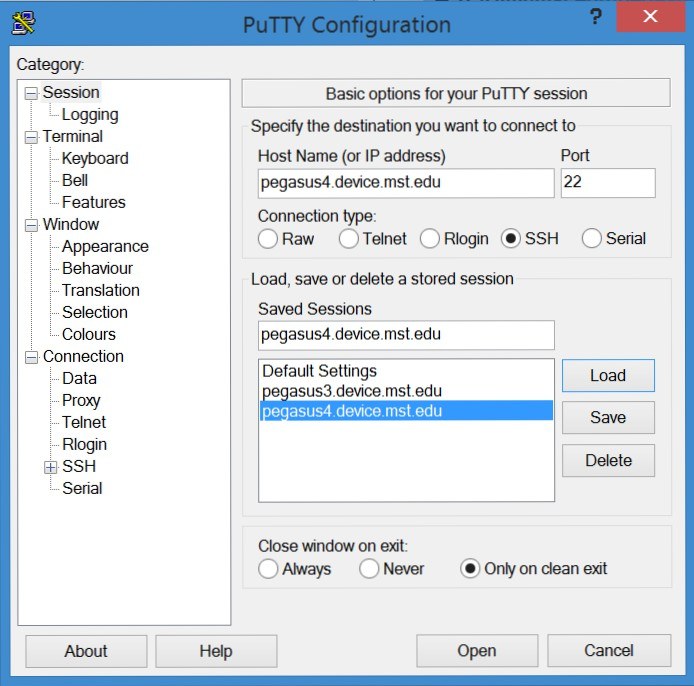
- Click on Session/Save
- Hit open.You should see the login screen:
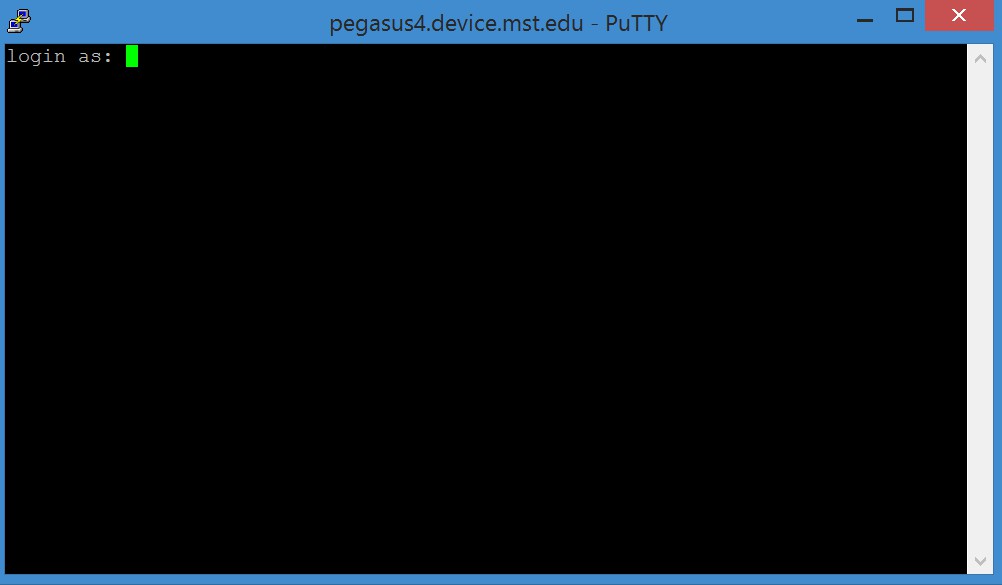
- Type your username and password and you are in!
- The Pegasus IV cluster file system is separate from the Missouri S&T campus file system. To transfer files, create a WinSCP session for pegasus4.device.mst.edu
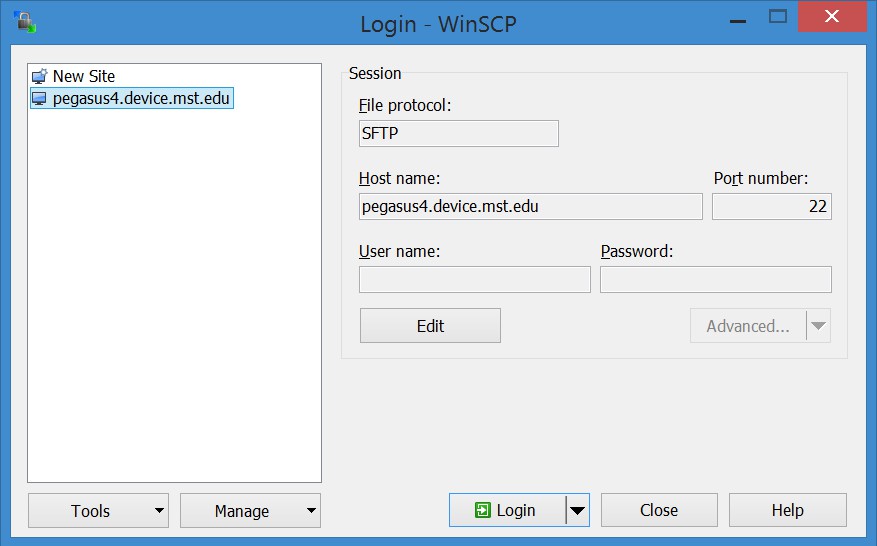
Note: Use of the Pegasus cluster is reserved solely for the members and guests of the Vojta, Wilemski, and Hale research groups. So, please do not e-mail us requesting processor time for beating the world's record in finding the largest prime number or proving the existence of intelligent extraterrestrial life.